
Label and organize your work
Turn selected ranges into consistent annotations and export-ready folders.
Create your project vocabulary
Open the workspace toolbar’s Settings menu, then Project Labels. Manage the project’s label names, colors, order, and shortcuts. Project labels travel with exported projects.
For this example, use Object Transfer as the action label. Rest and Wrist Rotation are optional alternatives for separate activities. Choose labels that describe the action consistently, rather than the person performing it.
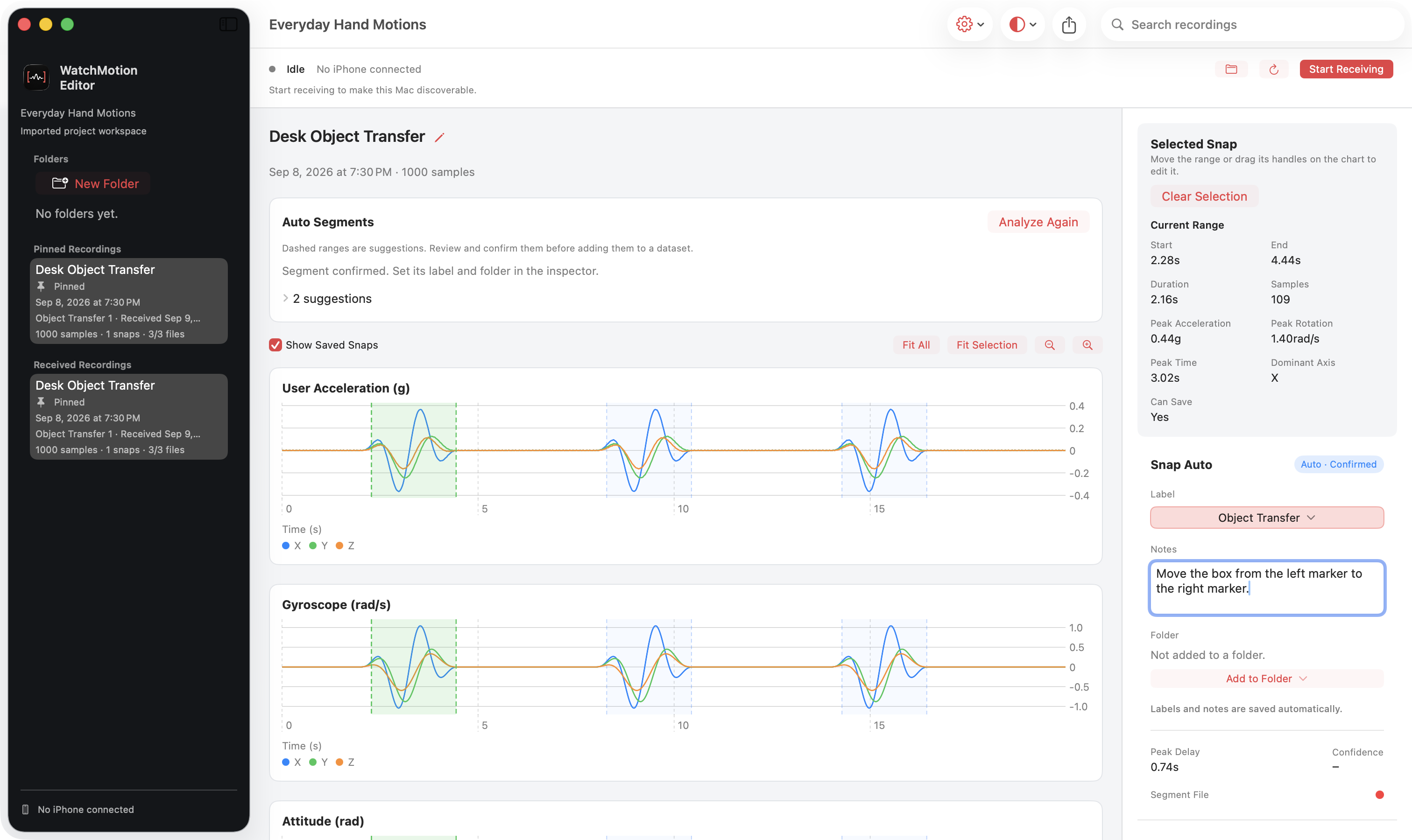
Label the selected snap
- Select a saved snap in the chart or Motion Snaps list.
- In the right inspector, open the Label control and choose Object Transfer.
- Add a short note if this segment needs context, such as which direction the box moved.
- Review the range again. Labels and notes are saved automatically in the workspace.
Collect the segments you want to export
- Choose New Folder in the sidebar and give it a meaningful name, such as Object Transfers.
- Select a labeled snap, then choose Add to Folder in the inspector.
- Repeat for the other confirmed movements. Open the folder to review its items before exporting.