
Find and refine motion segments
Use activity suggestions as a starting point, then make the final boundary decisions yourself.
Read the signals together
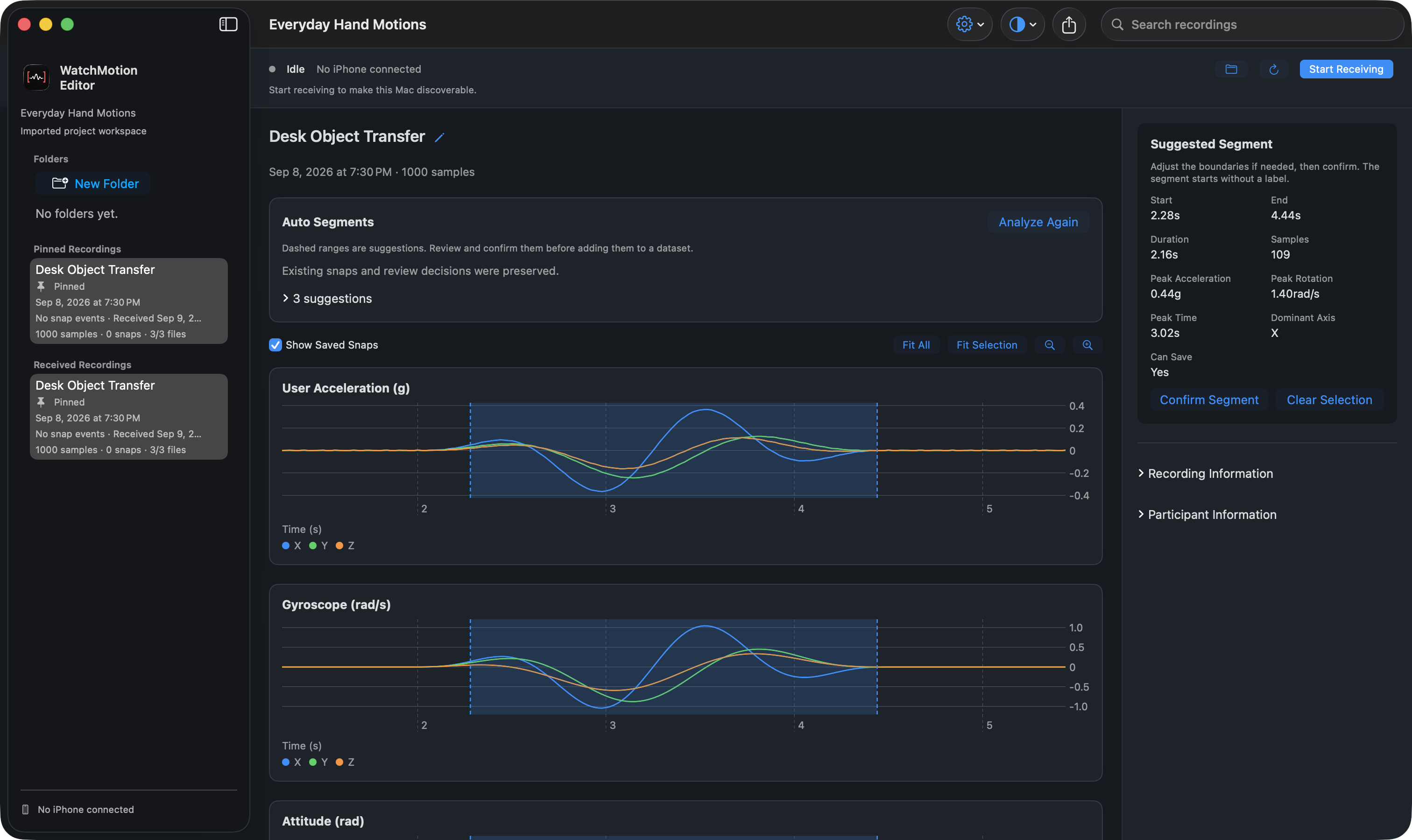
User Acceleration shows acceleration with gravity removed, in g. Gyroscope shows rotation rate in radians per second. Attitude shows orientation angles in radians. The X, Y, and Z traces are different axes, not different activities.
Choose Fit All to see the recording. For Desk Object Transfer, look for three groups of movement separated by quiet intervals. Use more than one signal when deciding where the meaningful action starts and ends.
Ask for a first cut
- Choose Suggest Segments in Auto Segments. If the recording has already been analyzed, the button is Analyze Again.
- Expand the suggestions list and choose a segment. Dashed chart ranges represent suggestions, not final labels.
- Review the beginning and end of the selected activity. Adjust the boundaries if needed.
- Choose Confirm Segment to create a saved snap. It starts unlabeled. Dismiss suggestions you do not want to use.
Make the boundaries yours
You can also drag across a chart to select a manual range. Review the selection in the inspector and save it as a snap. ‘Snap’ is the app’s name for a saved motion segment; it does not have to be a finger snap.
For a saved segment, move the range or drag its handles on the chart. Fit Selection focuses the view on that segment; Fit All returns to the full recording. Hold Space and drag to pan.
A useful segment includes the complete motion, without a long unrelated pause. Be consistent: decide whether your label includes picking up and putting down the object, then apply that rule across recordings.