Set up your workspace
Get your three devices ready, or explore the Mac editor with our example project.
Three devices. One workflow.
Apple Watch captures motion. Its paired iPhone receives recordings and lets you review them. Mac is the workspace for selecting ranges, labeling movements, organizing folders, and exporting datasets.
The complete workflow needs all three apps: iPhone with iOS 18.6 or later, Apple Watch with watchOS 11.6 or later, and Mac with macOS 15 or later. Install the Watch app on the Watch paired with your iPhone. This release does not include a dedicated iPad app.
Start with a familiar movement
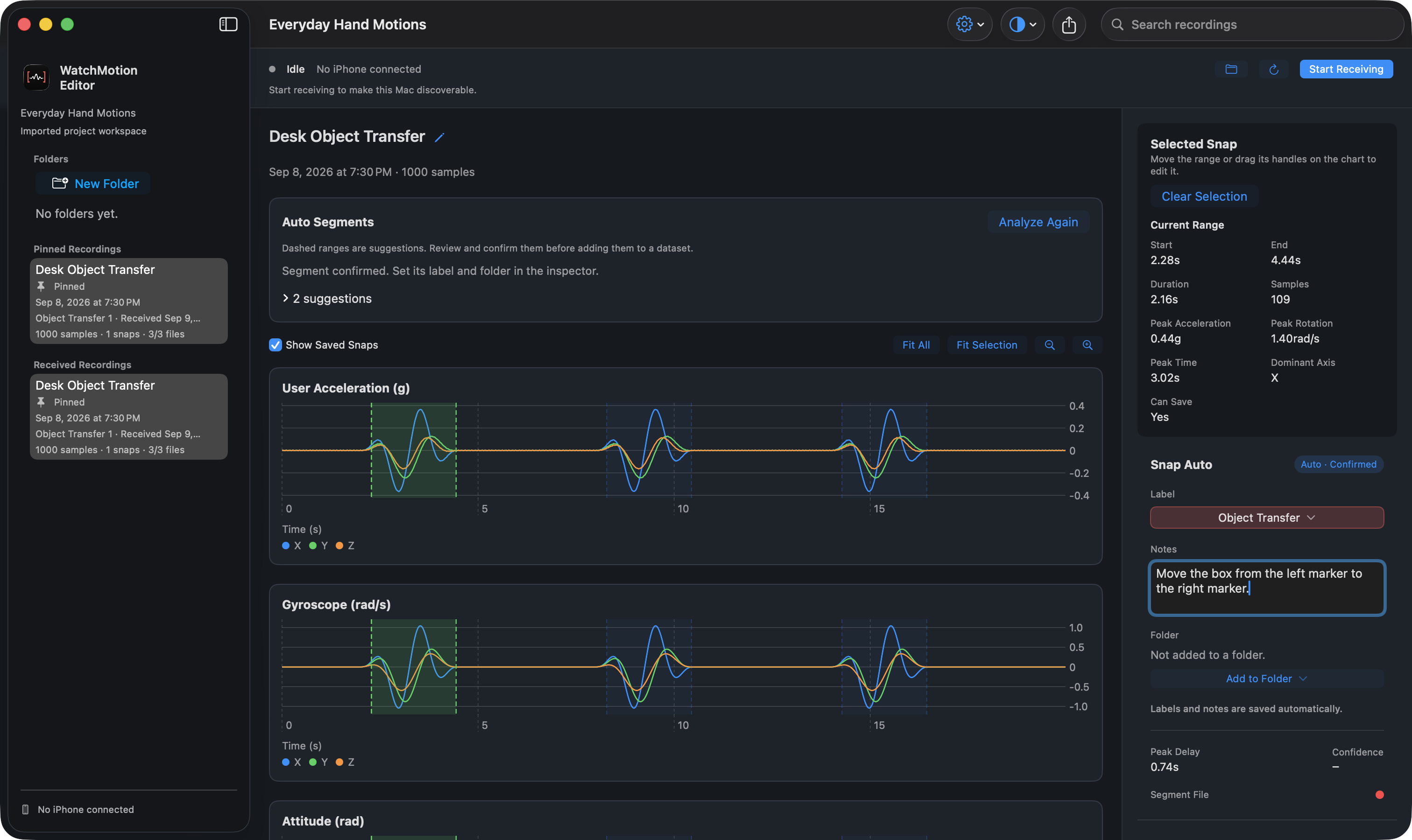
Our guide follows Everyday Hand Motions, a project built around moving a small box across a desk. The recording is named Desk Object Transfer. Pick up the box, move it from a left-hand marker to a right-hand marker, set it down, then pause. Repeat three times.
The downloadable example uses synthetic motion samples to illustrate this workflow. It is not a measurement of a real person or a benchmark for detection accuracy. Every Mac screenshot on this site was captured from the actual app with that example project.
- Download the example project from the guide overview.
- Open WatchMotion Editor on Mac and choose Open Project. Select the Everyday Hand Motions.watchmotion file.
- Choose Desk Object Transfer in the sidebar. You can now review the charts without connecting a Watch.
Know your way around
The left sidebar contains folders and recordings. The center shows motion charts and Auto Segments. The inspector on the right shows the selected range, its label, and notes.
Use the appearance control in the workspace toolbar to choose System, Light, or Dark. To revisit the in-app introduction, open Settings and choose Show Tutorial.